
help
A practical walkthrough
Handwritten Notes to Markdown
Keep three things clear: editable ink, a readable image and corrected Markdown text.
Your local workspace. Your own files. Availability →
Written and reviewed by the Pocket Orbit Product TeamUpdated October 18, 2026
Readable Markdown. Original ink alongside it.
Illustrated app workflow · example contentPractical workflow
The process, step by step
- 1Capture what is faster to draw.
- 2Recognize, then correct.
- 3Give the readable text a structure.
- 4Keep the source and the companion.
The Pocket Orbit workflow
Pocket Orbit01 / 05
01
Which version does this guide describe?
Follow this guide in your Pocket Orbit workspace. You can also open the sample material in an ordinary Markdown editor.
02
Capture what is faster to draw.
Write diagrams, equations and rough relationships by hand. Add typed labels when exact wording matters. A scan can preserve a paper source without retyping the entire page.
03
Recognize, then correct.
Compare recognition with the original before it becomes a summary or searchable reference. Names, formulas, abbreviations and hurried writing need special attention.
Recognition creates text from handwriting. It does not turn the original strokes into Markdown objects that every editor can move or erase.
04
Give the readable text a structure.
Use headings for topics, lists for parallel items and links for connections. Keep uncertainty and source references in the text instead of losing them while cleaning up.
Semantic headings work in both directions: a Heading 2 is represented by two hash marks. Arbitrary font sizes belong to visual formatting rather than standard Markdown.
05
Keep the source and the companion.
Link the handwritten source from the readable note when context matters. Preserve the file containing editable ink and layout if you want to reopen that canvas later.
A PDF or image is useful for viewing. It is a different artifact from an editable Pocket Orbit note or a plain Markdown file.
06
Inspect the destination before trusting the export.
Open a copy in the editor you intend to use. Check headings, links, attachments, Unicode filenames and a representative equation. Keep a backup until you have inspected the result.
The synthetic sample vault and compatibility worksheet offer a repeatable starting point. They do not establish finished app interoperability.
07
Exercise: preserve three different artifacts
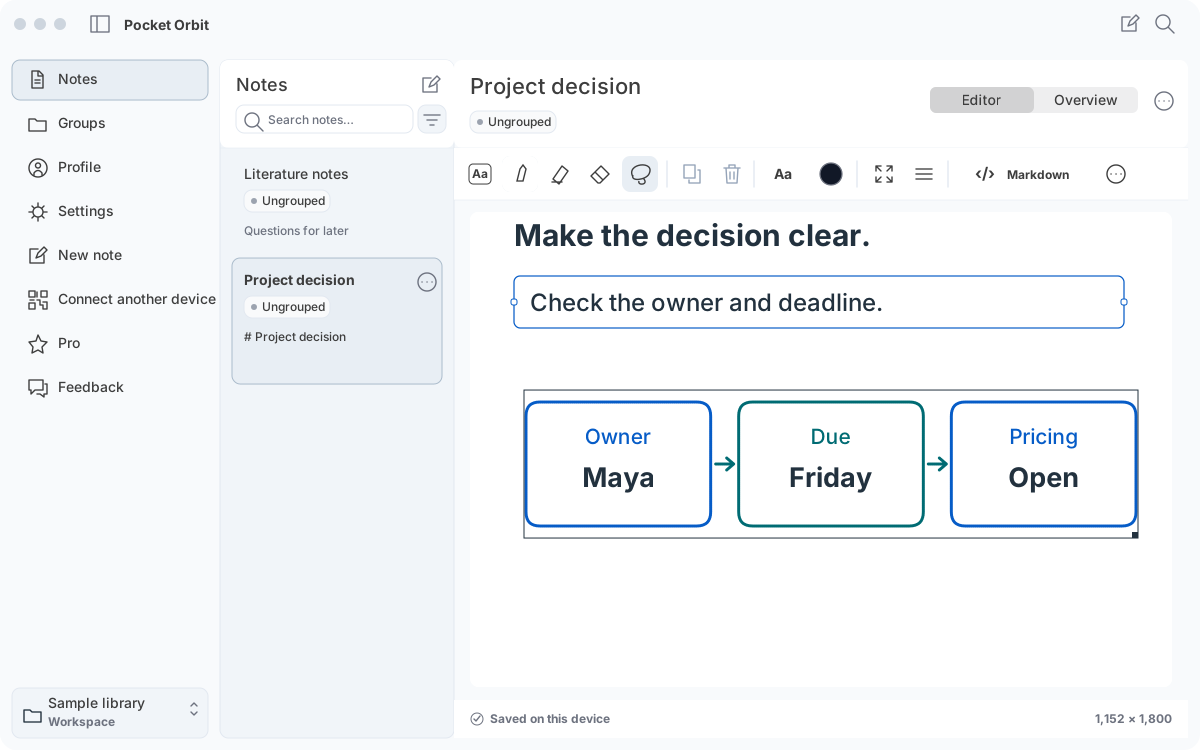
Use a short handwritten source with one arrow, one name and one deadline. Keep the editable Pocket Orbit ink note. Make a readable image or PDF copy for viewing, then place the corrected explanation in a Markdown note. These artifacts serve different jobs.
Inspect the Markdown source: headings, words and a reference to an image can be portable text. That reference does not contain the editable pen strokes. Keep the companion files with the native note if you need to continue drawing.
- Check the arrow against the explanation: did its direction or meaning change?
- Check the name and deadline against the original before accepting recognized text.
- Reopen a copy outside Pocket Orbit and confirm what is readable; test the native copy separately for editable ink.
08
Continue on Mac without losing the original
Pencil capture belongs to the supported iPad workflow. Mac continuation lets you review the readable note and its source; it does not turn the Mac into an Apple Pencil writing surface. Move only through the documented import/export path and inspect a copy first.
If another editor shows the text or an image but cannot edit the original strokes, keep that distinction visible. Recover from the untouched native copy rather than deleting companion files to make the folder look simpler.
09
Three artifacts, three different uses
Original editable ink needs the native stroke/companion representation. A rendered image is a readable visual but cannot reproduce editable strokes. Corrected Markdown is searchable and portable text. Keep all required companions when copying a native note; do not treat a plain SVG in a teaching folder as native ink.
Sources and editorial review
Written and reviewed by the Pocket Orbit Product Team · Updated October 18, 2026
Editorial trustSources, method, and update policy
Product claims are checked against the current app. Competitor claims use dated official sources. Corrections can be sent to alpaca-labs.dev@proton.me.
Continue this workflow
Local AI for Your Markdown VaultExplore workflowExport Notes from Pocket OrbitExplore workflowUse an Existing Markdown VaultExplore workflowCreate and Review an AI Note SummaryExplore workflowMarkdown workspace workflowsExplore workflowMarkdown editor for your local notesExplore workflowYour first Pocket Orbit workspaceExplore workflowA small Markdown workspace you can inspectExplore workflow
Try one small, checkable workflow
Start with the sample workspace and check the requirements for your Mac.