
Scan mode for paper notes

Keep the paper. Lose the retyping.

Capture a page, review the recognized text, and connect it to the organized study material you need later.

Best for

  • + Existing notebook pages and worksheets
  • + Combining paper notes with new typed or drawn context
  • + Students who want a review step before AI summarization

Not designed for

  • - Archival-grade document scanning
  • - Perfect OCR from blurred, shadowed, or low-contrast photos
  • - Heavy PDF markup workflows
Practical workflow

The process, step by step

  1. 1Place the page in even light and flatten it.
  2. 2Choose Scan and frame the full page.
  3. 3Review the recognized content and correct key terms.
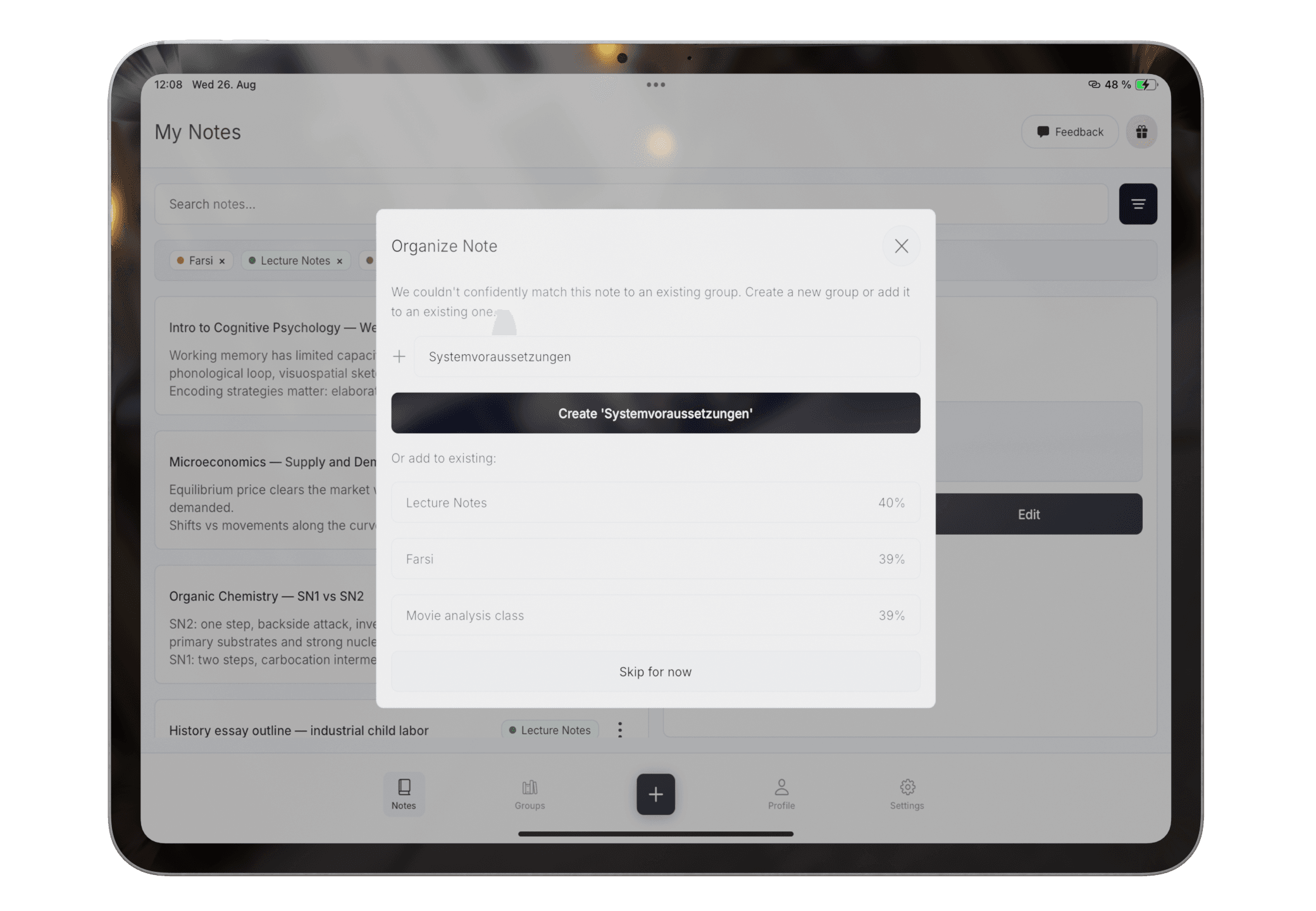
  4. 4Add the note to the right group or accept a relevant suggestion.
  5. 5Generate a summary only after checking the source.

Paper is not the problem

Retyping and disconnected context are

01

The page already exists

Rebuilding it manually costs time without improving the underlying material.

02

OCR can look confidently wrong

Blur, shadows, low contrast, and specialist vocabulary can produce plausible errors.

03

Text alone is still unsorted

Recognition solves capture, not where the material belongs or how you revise it.

A reviewable process

Capture cleanly, correct deliberately, organize afterward

Frame the complete page

Use even light, strong contrast, and a flat page so the source is easier to read.

See exact steps
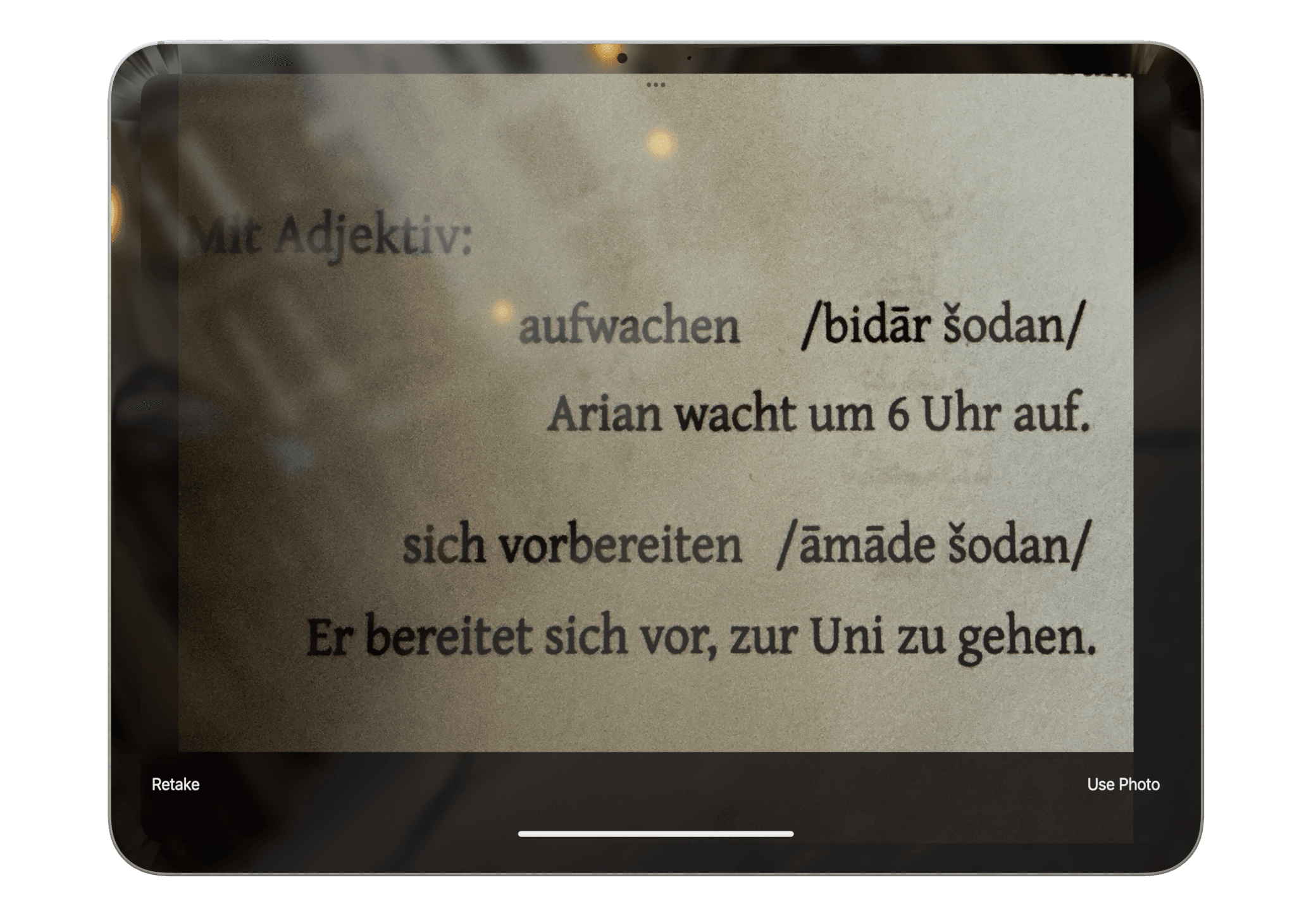
Pocket Orbit Scan mode framing a page

Beyond OCR

Turn a captured page into study-ready context

After review, the captured note can sit beside typed and drawn material in the same study workflow.

  • OCR quality depends on the source image
  • Important details require manual review
  • Sensitive material should follow your privacy requirements
Read the exact help steps
A scanned note receiving an organization suggestion
Questions

Frequently asked questions

Is scanning the same as handwriting-to-text?

Not exactly. Scanning applies OCR to an image of a page. Handwriting-to-text can also refer to recognizing strokes created directly with a stylus.

What improves handwriting OCR?

Even lighting, sharp focus, high contrast, a flat page, and a crop containing the complete note usually make recognition easier.

Editorial trust

Sources, method, and update policy

Product claims are checked against the current app. Competitor claims use dated official sources. Corrections can be sent to alpaca-labs.dev@proton.me.

Keep going

hub

Handwritten Notes on iPad: Workflows, Tests, and Guides

Learn when to type, scan, or draw notes on iPad and how to turn mixed inputs into organized study material.

Read hub

guide

How to Scan Handwritten Notes to Text on iPad

Improve handwriting OCR with better lighting, framing, correction, and an organized follow-up workflow.

Read guide

guide

Handwriting-to-Text vs OCR: What Is the Difference?

Understand stylus handwriting recognition, camera OCR, correction needs, and which workflow fits your notes.

Read guide

help

Scan Paper Notes with OCR

Capture a paper note in Pocket Orbit and prepare it for recognition and review.

Read help

help

Correct Handwriting Recognition

Review recognized text and fix important errors before organizing or summarizing a note.

Read help

resource

Handwriting Recognition Test Sheet

A printable set of headings, prose, numbers, symbols, and subject terms for comparing handwriting recognition apps.

Read resource

Try the Type, Scan, and Draw workflow

Download Pocket Orbit from the App Store, then use the linked help articles to test it with your own notes.

Download Pocket Orbit on the App Store