
feature
Apple Pencil Note-Taking App for Handwritten Notes
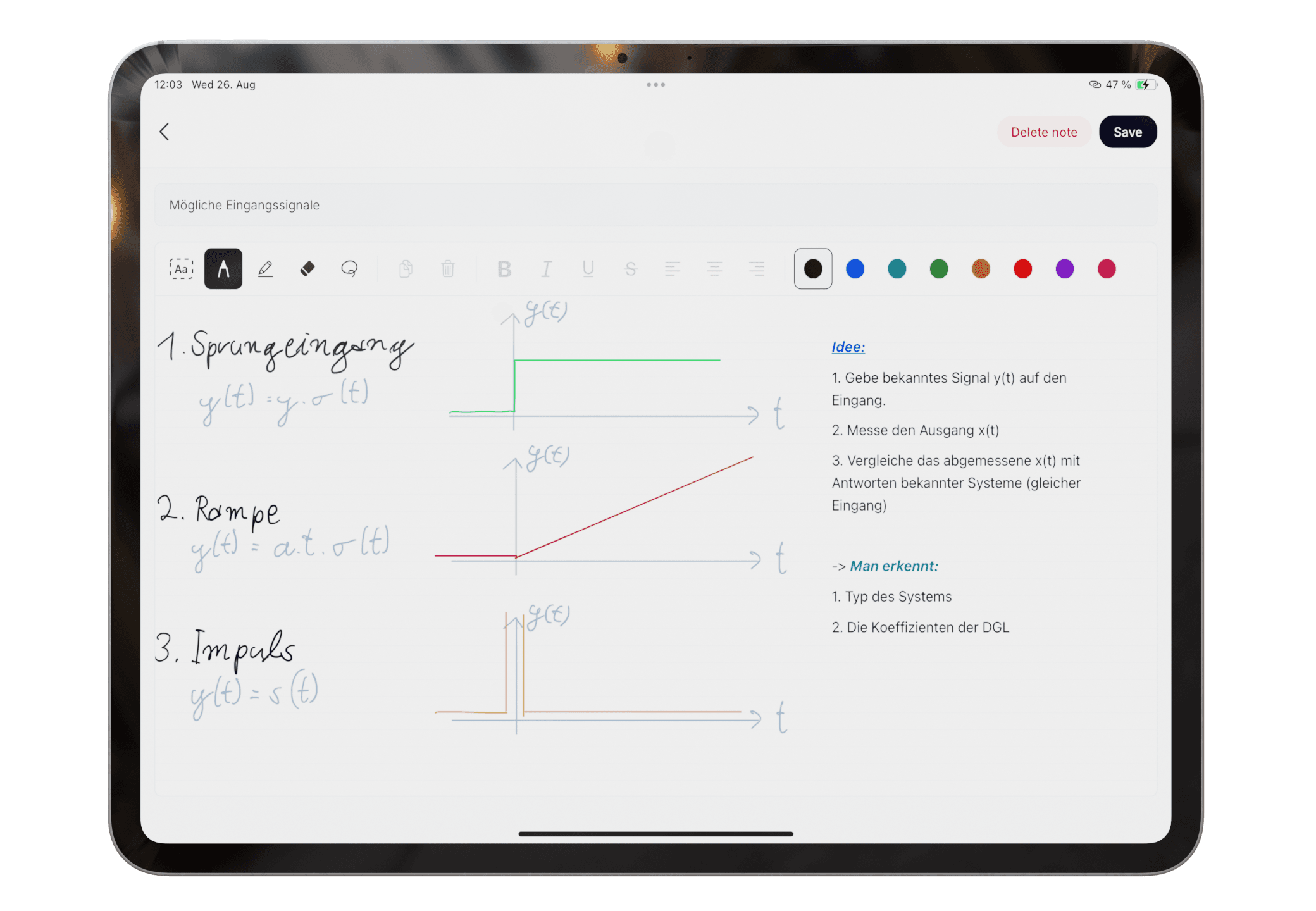
Handwrite notes on iPad with Apple Pencil, then review, recognize, organize, study, or export them in Pocket Orbit.
Read: Apple Pencil Note-Taking App for Handwritten NotesConfirm that your Apple Pencil is paired and works elsewhere on the iPad. Write is intended for note capture, not professional illustration.
Product claims are checked against the current app. Competitor claims use dated official sources. Corrections can be sent to alpaca-labs.dev@proton.me.
feature
Handwrite notes on iPad with Apple Pencil, then review, recognize, organize, study, or export them in Pocket Orbit.
Read: Apple Pencil Note-Taking App for Handwritten Noteshelp
Use text and Apple Pencil work on one canvas, then add scanned paper to the same study workflow.
Read: Use Writing, Drawing, and Scans Togetherhelp
Understand when handwriting recognition is used and what can affect the result.
Read: Recognize Handwriting in Pocket OrbitDownload Pocket Orbit from the App Store, then use the linked help articles to test it with your own notes.